
制作通知弹窗
已登记资产 → 局部 Layout → Popup 显示组 → 触发
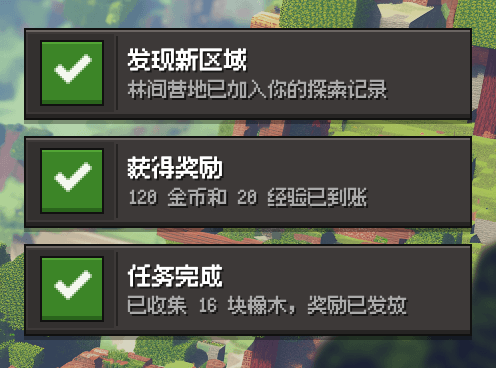
Popup 是按需触发的临时画面。先准备它的图片和字体,再创建 Layout,最后配置显示位置、时间与队列。
资产前提
本页复用两项已经存在的资产,不重复复制:
| 资产 | ID / 地址 | 来源 |
|---|---|---|
| 字体 | tutorial_font | 添加字体 |
| 面板 PNG | xerr_ui / panel / notice | Xerr 自带图片组 |
自带面板文件是 core/assets/image/xerr_ui/panel/textures/notice.png,对应登记在同组 config.yml。如果删除了默认资产,请恢复这两个文件或先登记自己的面板。
文件结构
tutorial_popup.yml
tutorial.yml
创建局部 Layout
defaults:
  font: tutorial_font
  image:
    namespace: xerr_ui
    basename: panel

tutorial_popup:
  panel:
    y: 12
    image:
      id: notice
  title:
    layer: 10
    x: 52
    y: 9
    value: "&f{{ get title }}"
  message:
    layer: 10
    x: 52
    y: -7
    value: "&7{{ get message }}"
Popup Layout 内不写 anchor,整块画面由外层显示组定位。它不用再加入常驻 HUD。
创建显示组
tutorial_notifications:
  anchor:
    x: 100
    y: 0
  slots:
    - x: -236
      y: -14
    - x: -236
      y: -68
    - x: -236
      y: -122
  pending-limit: 256
  reflow:
    duration: 6
    easing: ease-out
  popups:
    tutorial_notice:
      layout: tutorial_popup
      duration: 80
      refresh: 5
      variables:
        title: "通知"
        message: "欢迎来到服务器"
      animation:
        enter:
          duration: 8
          easing: ease-out
          from:
            x: 236
        exit:
          duration: 6
          easing: ease-in
          to:
            x: 236
slots 有三个位置,就能同时显示三条;更多实例等待空位。duration 是入场完成后的停留时间,80 tick 通常约 4 秒。
打包后触发
/xerr pack
/xerr popup show tutorial_notice
客户端先加载新包,再执行第二条命令。连续触发四次,可看到前三条显示、第四条排队。
给指定玩家:
/xerr popup show tutorial_notice Steve成功时不会发送聊天回执;错误和列表仍会输出。
命令使用配置中的默认变量。需要每次不同内容时,通过 Kether 或 API 传值:
popup show "tutorial_notice" with [
  title "任务完成"
  message "获得钻石 ×3"
]组的 anchor 与 slots 决定最终位置;from/to 是动画相对最终位置的额外偏移。Y 正数向上,opacity 范围 0~1。位置或动画范围变化后要重新打包。
全部字段见 Popup 参考。